
Oct 22, 2026 · By Guest Outreachy Team
Press Ctrl + K. On a Mac, press Command + K. That one shortcut is how to insert a link in Word, Excel, PowerPoint, Google Docs, Google Slides and Gmail, and it works the same way in each: select your text, press the keys, paste the address.
So why do so many people still get stuck?
Because the shortcut is only the start. Word hides its link to a heading inside a separate menu. Excel has a formula that builds links for you. Canva drops your links the moment you download a PNG. And in HTML, one small habit can stop Google from following your link at all.
This guide covers all of it, app by app, with the exact menu names each company uses today. If you write for the web, two of our guides go further: paid guest post links nofollow explains the rel values that tell Google what kind of link it is, and on page SEO services shows how internal links fit into a page that ranks.
Contents
- One shortcut covers most apps
- Quick reference table
- How to insert a link, app by app
- Writing HTML links manually
- JavaScript methods inside anchors
- Choosing words people click
- When clicking does nothing
- FAQ
- Conclusion
One Shortcut Covers Most Apps
Before the app by app steps, here is the habit that saves the most time.
Select first, then press the shortcut. When you highlight the words before pressing Ctrl + K, those words become the clickable text. If you press the shortcut with nothing selected, most apps ask you to type the display text yourself.
Paste the full address. Copy the URL straight from the browser bar, including https at the start. A missing https is the most common reason a link opens the wrong place or nothing at all.
Test it before you send it. Every app below has a way to open the link and check it. Ten seconds of testing saves an embarrassing follow up email.
That covers the basics. The rest of this guide is about the parts that differ.
Quick Reference Table
| App | Menu path | Shortcut | Link to a spot inside the file |
|---|---|---|---|
| Word for Windows | Insert > Link | Ctrl + K | Place in This Document |
| Word for Mac | Insert > Link | Command + K | This Document > Headings or Bookmarks |
| Word for the web | Insert > Link | Type the address and press Space | Headings and Bookmarks |
| Excel | Insert > Link | Ctrl + K | Place in This Document |
| PowerPoint | Insert > Link > Insert Link | Ctrl + K | Place in This Document |
| Google Docs | Insert > Link | Ctrl + K or Command + K | Headings and bookmarks |
| Google Slides | Insert > Link | Ctrl + K or Command + K | Another slide in the deck |
| Canva | More > Link on the floating toolbar | Link button | Pages in this document |
| Gmail | Link icon in the compose window | Ctrl + K or Command + K | Not available |
| Outlook on the web | Link icon in a new message | Ctrl + K | Not available |
| HTML | The a tag with an href | Not available | A fragment such as #pricing |
Keep this table handy. If you only need the menu path, you are done. If you need more, find your app below.
How to Insert a Link, App by App
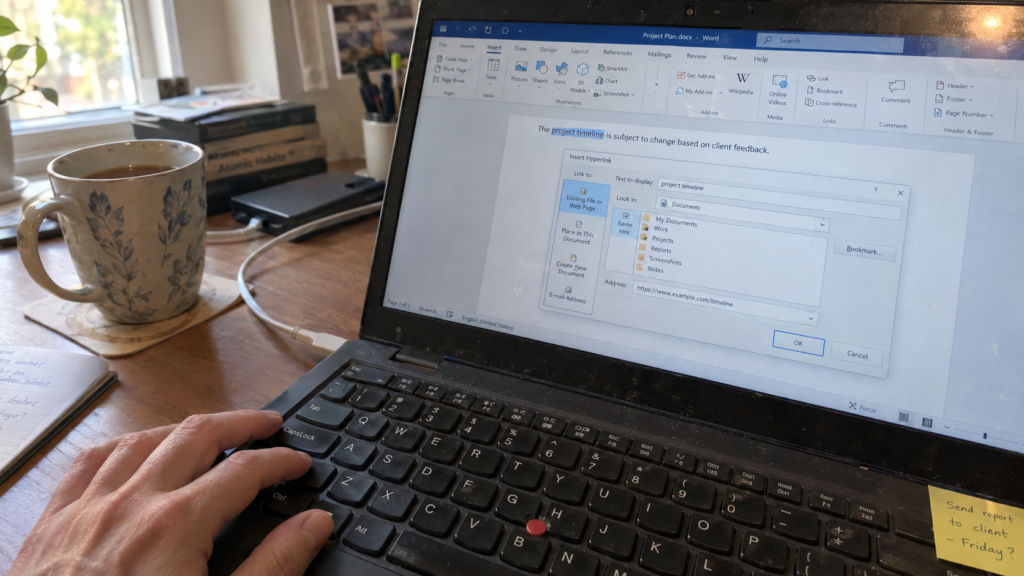
Word
Word gives you the most link options of any app on this list. Here is each one.
Link to a website
- Select the text or picture you want people to click.
- Go to Insert > Link, or right click the selection and choose Link. On Windows you can press Ctrl + K instead.
- Under Link to, keep Existing File or Web Page selected.
- Paste the web address into the Address box.
- Change Text to display if you want different words to show, then click OK.
There is an even faster way for plain addresses. Type or paste a full URL, then press Enter or the spacebar. Word turns it into a link on its own.
Link to a heading or bookmark in the same document
This is the option most people never find, and it is perfect for long reports and contents pages.
- Make sure the target has a heading style, or add a bookmark to it with Insert > Bookmark.
- Select the text that should jump to it.
- Go to Insert > Link.
- On Windows, choose Place in This Document. On a Mac, choose This Document and expand Headings or Bookmarks. In Word for the web, choose Headings and Bookmarks on the right side of the dialog.
- Pick the target and confirm.
Microsoft notes that heading links only work inside the current document. To jump into another file, use a bookmark and link to that file instead.
Link to an email address
- Select the text.
- Go to Insert > Link and choose Email Address under Link to.
- Type the address. You can add a subject line too, though Microsoft warns that some email programs ignore it.
In Word for the web, there is no separate email option. Type mailto: followed by the address in the link box, for example mailto:hello@yourdomain.com.
Edit, remove or stop automatic links
- Edit: right click the link and choose Edit Hyperlink.
- Add a hover note: inside Edit Hyperlink, click ScreenTip and type a short description.
- Remove one link but keep the words: right click it and choose Remove Hyperlink.
- Remove every link at once: press Ctrl + A to select everything, then Ctrl + Shift + F9. This turns all links into plain text.
- Stop Word from making links as you type: go to File > Options > Proofing > AutoCorrect Options, open the AutoFormat As You Type tab and clear Internet and network paths with hyperlinks.
That last setting is worth changing if you write a lot of documents that list web addresses as plain text, such as reference lists for print.
Excel
Excel gives you two ways to add a link: the menu, and a formula. The menu is quicker for one link. The formula wins when you need hundreds.
Insert a link with the menu
- Click the cell.
- Go to Insert > Link, or press Ctrl + K.
- Paste the web address, type the Text to display and click OK.
Link to another sheet or cell in the same workbook
This turns a large workbook into something people can move through like a website.
- Click the cell that will hold the link.
- Go to Insert > Link and choose Place in This Document.
- Under Cell Reference, pick the sheet, then type the cell, such as A1.
- Add the text to display and click OK.
If you jump to the same area often, give it a name first. Select the cells, type a name in the Name box at the top left and press Enter. Names cannot contain spaces and must start with a letter. The name then appears under Defined Names in the link dialog.
Build links with the HYPERLINK function
The formula looks like this:
=HYPERLINK(link_location, [friendly_name])The first part is where the link goes. The second part, which is optional, is the text people see. If you leave it out, the cell shows the address itself.
Here are three patterns worth saving.
A web link with friendly text:
=HYPERLINK("https://example.com/report", "Open the report")A jump to cell A1 on a sheet called January, in the same workbook:
=HYPERLINK(CELL("address",January!A1), "Go to January")A whole column of links built from a list. If column A holds web addresses and column B holds names, put this in C2 and fill it down:
=HYPERLINK(A2, B2)One limit to know. Microsoft says that in Excel for the web, the HYPERLINK function only works with web addresses, not with file paths or places inside the workbook.
Edit, select or remove a link in Excel
Clicking a link cell opens it, which makes editing awkward. To select the cell without opening the link, click and hold until the pointer turns into a cross, then let go. You can also move to the cell with the arrow keys.
- Edit: right click the cell and choose Edit Link. For a formula link, edit the formula in the formula bar.
- Remove the link but keep the text: right click and choose Remove Link.
- Remove the link and the text: right click and choose Clear Contents.
Typing an email address into a cell creates a link automatically.
PowerPoint
In PowerPoint, a link can sit on text, a shape or a picture. That makes it easy to build clickable buttons for a menu slide.
Link to a website
- Select the text, shape or picture.
- Go to Insert > Link > Insert Link, or press Ctrl + K.
- Choose Existing File or Web Page, add the text to display and an optional ScreenTip, then paste the address.
- Click OK.
Link to another slide
- Select the text, shape or picture.
- Go to Insert > Link > Insert Link and choose Place in This Document.
- Pick the slide and click OK.
This is how people build interactive decks, training modules and clickable menus without any extra software.
Link to an email address
Follow the same steps and choose Email Address. Clicking the link opens the email program of whoever is viewing the slides.
Test before you present
In Normal view, right click the link and choose Open Hyperlink. To change its color, select it and use Font Color on the Home tab.
Google Docs and Google Slides
Google keeps the steps the same across Docs, Sheets and Slides, which makes life easy.
Add a link
- Highlight the text, or click where the link should go.
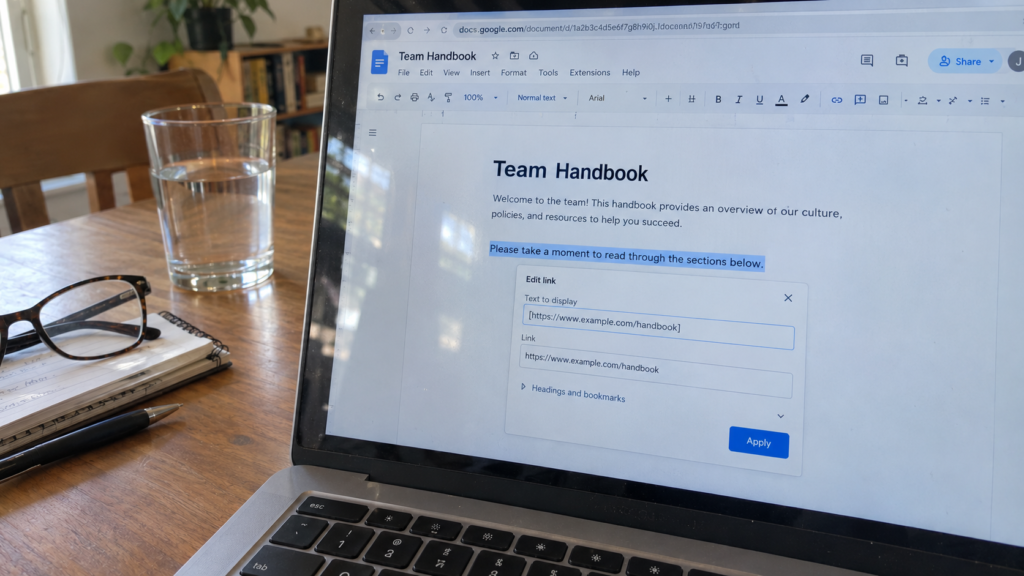
- Click Insert > Link, the link icon in the toolbar, or press Ctrl + K on Windows and Command + K on a Mac.
- Under Text, check the words that will show.
- Under Link, paste a web address or an email address. You can also search for a page right inside the box.
- Click Apply.
Link to a heading or bookmark in Google Docs
Long Google Docs become much easier to read with a clickable contents list.
- For a bookmark, click where it should go and choose Insert > Bookmark. For a heading, just make sure the text uses a heading style.
- Highlight the text that should jump there.
- Press Ctrl + K, then choose Headings and bookmarks at the bottom of the link box.
- Pick the heading or bookmark and click Apply.
Bookmarks are a Google Docs feature. Google says they are not available in Sheets or Slides.
Link to another slide in Google Slides
Select your text or shape, press Ctrl + K and choose a slide from the list that appears under the link box. This is handy for agenda slides that jump to each section.
Change or remove a link
Click the link. A small card appears with options to Change it or Remove it.
Canva
Canva links work well, but only if you export the right way. That catch trips up a lot of designers.
Add a link
- Select the element you want to link, such as a button, an image or a text box. To link only part of the text, double click the text box and highlight the words.
- Click the More icon on the floating toolbar.
- Choose Link.
- Paste the address and press Enter.
Link to another page in the same design
In the link box, choose a page under Pages in this document. This is great for clickable contents pages in ebooks and media kits.
Edit or remove a link
Select the linked element and open the link options on the floating toolbar. You can change the text, link and display mode, or click the trash icon to remove it.
Which downloads keep your links
This is where most Canva links go missing:
| Format | Links stay clickable? |
|---|---|
| Yes, as long as it is not a flattened PDF | |
| Presenting in Canva | Yes |
| JPG and PNG | No |
| MP4 video | No |
| Posts and PDF uploads on social media | No |
So if you need clickable links, download a standard PDF or share the design as a presentation. Canva also notes that links placed on text with effects may not work.
Email Programs
Emails are where links matter most, because a reader decides in seconds whether to click.
Gmail
- Click Compose.
- Highlight the text you want to link.
- Press Ctrl + K, or Command + K on a Mac, or click the link icon at the bottom of the message window.
- Paste the web address, or switch to an email address, and click OK.
Outlook on the web
- Click New mail and highlight your text.
- Click the link icon or press Ctrl + K.
- Paste the address and click OK.
Outlook desktop app
Highlight the text, open the Insert tab and click Link. Paste the address and confirm.
Apple Mail on a Mac
Highlight the text, right click it, point to Link and choose Add Link. Paste the address and click OK.
Yahoo Mail
Click Compose, then click the link icon or press Ctrl + K. Add the text and the address, then click Save.
A quick tip that works in every email app: link a few clear words, not a long raw address. A sentence like see the full pricing page gets more clicks than a 90 character URL, and it looks far less like spam.
Writing HTML Links Manually
Every link on the web, behind every button in every app above, comes down to one HTML element: the a tag.
The Basic Tag
<a href="https://example.com/pricing">See our pricing</a>The href holds the address. The words between the tags are what people see and click. That is all a link needs.
You can also use a relative address when linking inside your own site:
<a href="/blog/">Read the blog</a>Opening New Tabs
<a href="https://example.com" target="_blank">Example site (opens in a new tab)</a>A blank target opens the page in a new tab. MDN, the reference most web developers rely on, notes that modern browsers now treat this as if rel noopener were set, which protects your page from the new tab. Older browsers did not, so many developers still add it to be safe:
<a href="https://example.com" target="_blank" rel="noopener">Example site (opens in a new tab)</a>MDN also recommends telling readers when a link opens a new tab, as in the example above. People using screen readers can get confused when a new tab appears without warning.
Same Page Jumps
Give the target an id, then link to it with a hash:
<a href="#pricing">Jump to pricing</a>

<h2 id="pricing">Pricing</h2>
This is how contents lists at the top of long articles work, including the one at the top of this guide.
Mailto Plus Tel
<a href="mailto:hello@example.com">Email our team</a>
<a href="tel:+15551234567">Call us</a>
A mailto link opens the email app of the reader with your address filled in. A tel link starts a call on phones and opens a calling app on most computers.
Download Files
<a href="/files/price-list.pdf" download>Download the price list (PDF)</a>The download attribute asks the browser to save the file instead of opening it. MDN points out that it only works for files on your own site. For files on other sites, the browser just opens the link as normal.
JavaScript Methods Inside Anchors
Sometimes you want a click to run code instead of opening a page: open a popup, track an event or show a hidden section. People often search for how to insert a JavaScript method in an HTML link, and the first answer they find is usually this:
<a href="javascript:openMenu()">Menu</a>It works. It is also the approach to avoid.
MDN warns that javascript: URLs are discouraged because they can run arbitrary code, much like eval, and because they break normal link behavior, which hurts accessibility. In its words, a link like that is not really a hyperlink.
Google agrees from the search side. In its link best practices, Google says it can reliably follow only a elements with an href. It lists an href with a javascript: value as not recommended, along with links that rely only on onclick to move the page.
So which pattern should you use? It depends on what the click does.
If the click does an action, use a button. Opening a menu, showing a popup or submitting something is an action, not a page. A button is the right element:
<button id="menu-button">Menu</button>

<script>
  document.getElementById("menu-button").addEventListener("click", function () {
    openMenu();
  });
</script>
If the click goes to a page and also runs code, keep a real href. For example, you might want to record a click before the page opens. Keep the real address so the link still works for people, for Google and for anyone with scripts turned off:
<a href="/pricing" id="pricing-link">See pricing</a>

<script>
  document.getElementById("pricing-link").addEventListener("click", function () {
    trackClick("pricing");
  });
</script>
If code must replace the page change, cancel the default inside the listener. This keeps the real address in place as a fallback:
<a href="/gallery" id="gallery-link">Open gallery</a>

<script>
  document.getElementById("gallery-link").addEventListener("click", function (event) {
    event.preventDefault();
    openGalleryPopup();
  });
</script>
The rule in one line: real addresses go in href, actions go in buttons, and scripts go in event listeners.
Choosing Words People Click
Inserting the link is the easy part. The words you link decide whether anyone clicks it.
Google gives clear advice on this in its link best practices. Good link text is descriptive, short and relevant to the page it points to. Generic words like click here or read more do not tell readers or Google anything. Google suggests a simple test: read the link text on its own and see if it still makes sense.
MDN makes the same point for accessibility. People using screen readers often jump from link to link, so a page full of here and click here is close to useless for them.
Here is the difference in practice:
| Weak link text | Better link text |
|---|---|
| Click here to see our prices | See our guest post prices |
| Read more | Read the full disavow guide |
| https://example.com/2026/report.pdf | Download the 2026 report (PDF) |
| best cheap seo services london | Our local SEO services |
That last row matters for SEO. Google says that stuffing keywords into link text breaks its spam policies. Write the sentence naturally first, then link the words that describe the page.
Two more habits from the same Google guidance:
- Do not chain links together. A row of links with no words between them is hard to read and gives no context.
- Give every important page at least one internal link. A page with no links pointing to it is hard for both readers and Google to find.
When Clicking Does Nothing
Links break for a small number of reasons. This table covers the ones people hit most.
| Problem | Likely cause | Fix |
|---|---|---|
| Link opens the wrong page or nothing | Address missing https or has a typo | Copy the address straight from the browser bar |
| Canva link not clickable | Downloaded as JPG, PNG or MP4 | Download a standard PDF instead |
| Excel formula link shows an error | Target sheet, cell or file does not exist | Check the sheet name and cell in the formula |
| Excel for the web link will not open a file | HYPERLINK only supports web addresses there | Use a web address or open the file in the desktop app |
| Word heading link does nothing | Target text has no heading style | Apply a heading style, then relink |
| Word keeps turning addresses into links | AutoFormat As You Type is on | Clear the hyperlinks option in AutoCorrect settings |
| Email link subject line missing | Some email apps ignore the subject | Put key details in the message instead |
| Link text shows but cannot be clicked in a social post | Social platforms do not keep design links | Put the link in the caption or bio |
| HTML link not followed by Google | Uses a javascript: value or has no href | Use a real address in href |
If none of these fit, open the link options in your app and paste the address again. A fresh paste fixes more broken links than any other trick.
FAQ
What is the shortcut to insert a link?
Ctrl + K on Windows and Command + K on a Mac. It works in Word, Excel, PowerPoint, Google Docs, Google Slides and Gmail.
How do I insert a link into a Word document without changing the text?
Select the existing words first, then press Ctrl + K. The selected words become the link, and the text stays the same.
How do I insert a link in Excel to another sheet?
Go to Insert > Link, choose Place in This Document, pick the sheet and type the cell. Or use the HYPERLINK function with CELL to build the jump in a formula.
How do I insert a web link into PowerPoint?
Select text or a shape, go to Insert > Link > Insert Link, choose Existing File or Web Page and paste the address.
Why are my Canva links not working?
Most often the design was downloaded as a JPG, PNG or MP4, which do not keep links. Download it as a standard PDF instead.
How do I insert a link in Google Docs to a heading?
Press Ctrl + K, choose Headings and bookmarks at the bottom of the link box and pick the heading.
How do I insert an HTML link?
Use an a tag with an href, such as a link to https://example.com with the words you want people to click between the tags.
Can I run JavaScript from an HTML link?
You can, but avoid javascript: URLs. Use a button with an event listener for actions, and keep a real address in href for links.
Conclusion
Now you know how to insert a link almost anywhere: Ctrl + K or Command + K, then paste the address. That one habit covers Word, Excel, PowerPoint, Google Docs, Google Slides and Gmail.
The details are where people get stuck, and now you have them too. Word links to headings through Place in This Document. Excel can build links with the HYPERLINK function. Canva keeps links only in PDFs and presentations. And in HTML, a real address always belongs in href, with actions handled by buttons and event listeners.
Last step, wherever you work: read your link text on its own. If it tells the reader exactly where they are going, you have written a link people will click.